Microsoft
Let users authenticate with your app by using their Microsoft account.
You can use Gloo Mesh Gateway external auth to authenticate users to your apps with other accounts that they have. In this guide, you set up Gloo Mesh Gateway to authenticate with users’ Microsoft accounts.
As part of your Microsoft setup, you can use Microsoft Entra ID for cloud-based identity and access management across all your Microsoft resources, such as Microsoft 365 and Azure. You can register users and applications in Entra ID to set up OIDC authentication in Gloo Mesh Gateway.
Gloo even supports distributed claims for the identity tokens that are returned. In Azure Active Directory, identity tokens can only support a user’s membership in up to 200 groups. Sometimes, user memberships exceed this limit. In such cases, the authentication fails unless you set up distributed claims. You can give Gloo Mesh Gateway the details of your app in Entra ID. Then, behind the scenes, the Gloo external auth service talks to the Microsoft Graph API to retrieve the complete identity token. You can even set up caching, so that the Graph API does not accidentally become throttled if you have many client requests.
Before you begin
This guide assumes that you use the same names for components like clusters, workspaces, and namespaces as in the getting started. If you have different names, make sure to update the sample configuration files in this guide.
- Set up Gloo Mesh Gateway in a single cluster.
- Install Bookinfo and other sample apps.
Configure an HTTP listener on your gateway and set up basic routing for the sample apps.
Make sure that the external auth service is installed and running. If not, install the external auth service.
kubectl get pods -A -l app=ext-auth-serviceGet the external address of your ingress gateway. The steps vary depending on the type of load balancer that backs the ingress gateway.
```shell export INGRESS_GW_ADDRESS=$(kubectl get svc -n gloo-mesh-gateways istio-ingressgateway -o jsonpath="{.status.loadBalancer.ingress[0]['hostname','ip']}") echo $INGRESS_GW_ADDRESS ```Note: Depending on your environment, you might see
<pending>instead of an external IP address. For example, if you are testing locally in kind or minikube, or if you have insufficient permissions in your cloud platform, you can instead port-forward the service port of the ingress gateway:kubectl -n gloo-mesh-gateways port-forward deploy/istio-ingressgateway-1-22 8081
Step 1: Set up Microsoft Entra ID
To use Microsoft Entra ID as an identity provider (IdP), you must set up Entra ID and register your app.
If you have not already, create your user directory. For instructions, see the Microsoft Entra ID docs.
Create and register an app with Microsoft Entra ID. This app is used by the Gloo external auth service for authentication purposes to call the Microsoft Graph API. For instructions, see the Microsoft Entra ID docs. At a minimum, make sure that you set up and note the values of the following fields:
- Overview > Application (client) ID: The client ID that Microsoft Entra generates. Later, you create a Kubernetes secret for the Gloo external auth service with the client ID.
export EXTAUTH_CLIENT_ID=<client-id> - Overview > Directory (tenant) ID: The tenant ID for when you configure the external auth policy later.
export EXTAUTH_TENANT_ID=<tenant-id> - Manage > Certificates & secrets: The client secret that Microsoft Entra generates. Later, you create a Kubernetes secret for the Gloo external auth service with the client secret.
export EXTAUTH_SECRET=<secret>
- Overview > Application (client) ID: The client ID that Microsoft Entra generates. Later, you create a Kubernetes secret for the Gloo external auth service with the client ID.
Create and register another app with Microsoft Entra ID. This app represents the backing service that your users want to access, such as an httpbin app. When users access the service, Gloo Mesh Gateway handles the OIDC authorization flow and redirects them to Microsoft to authenticate. The identity token is returned upon successful authentication, per the configuration in this app. For instructions, see the Microsoft Entra ID docs. At a minimum, make sure that you set up and note the values of the following fields:
- Overview > Application (client) ID: The client ID that Microsoft Entra generates. Later, you create a Kubernetes secret for the Gloo external auth service with the client ID.
export HTTPBIN_APP_CLIENT_ID=<client-id> - Overview > Endpoints: The issuer URL for the app, which is similar to the
OpenID Connect metadata documentURL without the/.well-known/openid-configurationsubpath.export HTTPBIN_APP_ISSUER_URL=https://login.microsoftonline.com/<tenant-id>/v2.0 - Manage > Certificates & secrets: The client secret that Microsoft Entra generates. Later, you create a Kubernetes secret for the Gloo external auth service with the client secret.
export HTTPBIN_APP_SECRET=<secret> - Manage > Authentication: A redirect URI to use as part of the OAuth flow that you set up later. To create a redirect URI for your web app, click Add a platform > Web. Typically, the format of the redirect URI looks similar to
https://<app-url>/callback. If you do not have a custom domain for your external auth app, you might use the ingress gateway’s address for the<app-url>. - Manage > App roles: A default role for the app.
- Manage > Token configuration: Add the
groupsclaim and any other claim that you want returned in the identity token. - Manage > Expose an API: Add an Application ID URI. Then, use this Application ID URI to add a scope.
export HTTPBIN_APP_SCOPE=api://<app-url>/<scope-name>
- Overview > Application (client) ID: The client ID that Microsoft Entra generates. Later, you create a Kubernetes secret for the Gloo external auth service with the client ID.
Step 2: Prepare routing for your app
Set up the routing for the app that your users want to access. The following example uses the httpbin app. You create an HTTPS listener on a virtual gateway for the httpbin app, which is the same app that you configured an app URL and redirect URI for in Microsoft Entra.
You can skip this step if you already have a custom domain set up for the backing service of the Microsoft app. However, the app URL that you use must be configured for HTTPS traffic.
Create an HTTPS listener on a virtual gateway to expose that app that you want to configure external auth for. This app is the same app that you configured an app URL and redirect URI for in Microsoft Entra.
Follow the HTTPS listener guide to create the TLS configuration for the HTTPS listener.
For the virtual gateway, you can use a configuration similar to the following. Make sure to update the
secretNameif you used a different value.kubectl apply -f - <<EOF apiVersion: networking.gloo.solo.io/v2 kind: VirtualGateway metadata: name: httpbin-ingress namespace: httpbin spec: listeners: - http: {} port: number: 443 tls: mode: SIMPLE secretName: gw-ssl-1-secret - http: {} httpsRedirect: true port: number: 80 workloads: - selector: labels: istio: ingressgateway EOF
Create a route table for the app that sets up routing rules for the app URL and redirect URI that you configured in Microsoft Entra.
The app URL is the ingress gateway address with the
/ipmatcher that is set up in the following route table.export APP_URL=${INGRESS_GW_IP}/ipThe
/callbackmatcher is set up to match the redirect URI that you previously configured in your Microsoft Entra app.kubectl apply -f - <<EOF apiVersion: networking.gloo.solo.io/v2 kind: RouteTable metadata: name: httpbin-ingress namespace: httpbin labels: expose: "true" spec: hosts: - '*' http: - forwardTo: destinations: - port: number: 8000 ref: name: httpbin namespace: httpbin matchers: - uri: exact: /ip name: httpbin - forwardTo: destinations: - port: number: 8000 ref: name: httpbin namespace: httpbin matchers: - uri: exact: /callback name: httpbin-callback virtualGateways: - name: httpbin-ingress namespace: httpbin cluster: $CLUSTER_NAME workloadSelectors: [] EOF
Step 3: Create the secrets for the external auth service
Configure the Gloo external auth service to handle the OAuth flow for you. To do so, you create secrets for the external auth service based on the information that you configured in Microsoft Entra.
Store the client secret for the external auth service. This way, the external auth service can talk to the MS Graph API to retrieve distributed claims for users that are members of more than 200 groups. Create the Kubernetes secret in the workload cluster that you want to create the external auth policy in.
  kubectl apply -f - <<EOF
apiVersion: v1
kind: Secret
metadata:
  name: microsoft-extauth
  namespace: gloo-mesh
type: extauth.solo.io/oauth
stringData:
  client-secret: ${EXTAUTH_SECRET}
EOF
Store the client secret of the second Microsoft app that represents the backing service such as httpbin. This way, the external auth service can handle the OIDC flow for requests to the httpbin app in Microsoft Entra. Create the Kubernetes secret in the workload cluster that you want to create the external auth policy in.
  kubectl apply -f - <<EOF
apiVersion: v1
kind: Secret
metadata:
  name: microsoft-httpbin
  namespace: gloo-mesh
type: extauth.solo.io/oauth
stringData:
  client-secret: ${HTTPBIN_APP_SECRET}
EOF
Step 4: Configure authentication policies
Create a Rego policy to evaluate requests for user membership in a particular group. Then, create an external auth policy that has two modules. One module sets up Microsoft as an OIDC provider, including distributed claims. The other module sets up OPA to enforce a Rego policy on the identity token that is returned from the OIDC provider.
Create an external auth server to use for your policies.
  kubectl apply -f - <<EOF
apiVersion: admin.gloo.solo.io/v2
kind: ExtAuthServer
metadata:
  name: ext-auth-server
  namespace: httpbin
spec:
  destinationServer:
    port:
      number: 8083
    ref:
      cluster: $CLUSTER_NAME
      name: ext-auth-service
      namespace: gloo-mesh
EOF
Create a config map with the Rego policy that you want to enforce. For more information, see the OPA docs. The following Rego policy:
- Sets the input state key to
azure_claims. Theazure_claimssetting gets thegroupsclaim values from the Microsoft OIDC claims in the token, along with any distributed claims. This way, the user can be a member of less than or more than 200 groups. - Iterates through all of the
groupsclaim values. - Allows requests if the user is a member of the group with ID
12345-67-89-10111213. You can update this group ID value accordingly. To find your group IDs in Microsoft Entra, go to Identity > Groups > All groups, search for your group, and copy the Object Id value.
kubectl apply -f - <<EOF apiVersion: v1 kind: ConfigMap metadata: name: httpbin-rego namespace: httpbin data: policy.rego: | package test default allow = false allow { # Allow group with ID 12345-67-89-10111213 count({i | input.state["azure_claims"]["groups"][i] == "12345-67-89-10111213"}) > 0 } EOF- Sets the input state key to
Create an external auth policy that uses Microsoft for OIDC and enforces the Rego policy. The policy also enables distributed claims and caching for OIDC with Microsoft. You only need distributed claims if the users that authenticate are members in more than 200 groups. If not, you can remove the
azuresection from the external auth policy.kubectl apply -f - <<EOF apiVersion: security.policy.gloo.solo.io/v2 kind: ExtAuthPolicy metadata: name: httpbin-test namespace: httpbin spec: applyToDestinations: - selector: labels: app: httpbin config: server: cluster: $CLUSTER_NAME name: ext-auth-server namespace: httpbin glooAuth: configs: - oauth2: oidcAuthorizationCode: appUrl: $APP_URL azure: claimsCachingOptions: host: redis.gloo-mesh.svc.cluster.local:6379 clientId: $EXTAUTH_CLIENT_ID clientSecret: name: microsoft-extauth namespace: gloo-mesh tenantId: $EXTAUTH_TENANT_ID callbackPath: /callback clientId: $HTTPBIN_APP_CLIENT_ID clientSecretRef: name: microsoft-httpbin namespace: gloo-mesh issuerUrl: $HTTPBIN_APP_ISSUER_URL scopes: - $HTTPBIN_APP_SCOPE - profile - email - openid session: redis: cookieName: oidcsession options: host: redis.gloo-mesh.svc.cluster.local:6379 - name: opa opaAuth: modules: - name: httpbin-rego namespace: httpbin query: data.test.allow == true EOF
Review the following table to understand this configuration. For more information, see the API reference.
| Setting | Description |
|---|---|
applyToDestinations | Use labels to apply the policy to destinations. Destinations might be a Kubernetes service, VirtualDestination, or ExternalService (if supported by the policy). If you do not specify any destinations or routes, the policy applies to all destinations in the workspace by default. If you do not specify any destinations but you do specify a route, the policy applies to the route but to no destinations. Alternatively, you can apply the policy to a route instead of a destination. |
server | The external auth server to use for the policy. |
oauth2 | Configure the OAuth 2.0 protocol details to use to authenticate requests. The example uses Microsoft as the external identity provider. Gloo Mesh Gateway handles the OIDC flow by validating the contents of an ID token based on the configuration details that you configure in oidcAuthorizationCode. |
appUrl | The public URL of the app that you want to set up external auth for. This setting is used in combination with the callbackPath attribute. If your app does not have a custom domain, you can use the address of the ingress gateway and the path that your app is exposed on, such as https://52.xxx.xx.xxx/ip. |
azure | The configuration details for the external auth service to authenticate with the Microsoft Graph API for distributed claims and caching. You use distributed claims for cases where users are members of more than 200 groups. If you do not need distributed claims, you can omit this section.
|
callbackPath | The callback path, relative to the appUrl setting. After a user authenticates, the identity provider redirects the user to this callback URL. Gloo Mesh Gateway intercepts requests with this path, exchanges the authorization code received from the IdP for an ID token, places the ID token in a cookie on the request, and forwards the request to its original destination.The callback path must have a matching route in the route table that is associated with the external auth policy. For example, you could simply have a / path-prefix route which would match any callback path. The important part of this callback ‘catch all’ route is that the request goes through the routing filters including external auth. |
clientId | The client ID of the Microsoft app that represents the app that serves the requests, such as httpbin. |
clientSecretRef | The reference to the Kubernetes secret that you previously created for the Microsoft app that represents the app that serves the requests, such as httpbin. The secret must exist on the same cluster as the ExtAuthServer resource that this policy refers to. |
issuerUrl | The URL of the OpenID Connect identity provider. Gloo Mesh Gateway automatically discovers OIDC configuration by querying the .well-known/openid-configuration endpoint on the issuer_url. In this example, Gloo Mesh Gateway expects to find OIDC discovery information at the address in Microsoft Entra that you previously retrieved, https://login.microsoftonline.com/<tenant-id>/v2.0. |
scopes | Other OIDC scopes to request. By default, the openid scope is included, which returns the OIDC protocol information that is needed to verify the user’s identity. For Azure, you must also include the api scope, which is the Application ID URI that you previously configured in Microsoft Entra. This example also requests the email and profile scopes. For more information, see the OpenID docs. |
session | Details on how to store the user session details. In this example, the cookie is stored in Redis. |
opaAuth | The configuration details for the OPA policy that you want to enforce.
|
Step 5: Verify the OAuth policy
In your web browser, open the path to your application, such as the ingress gateway IP address and the path that you configured in the route table. You are redirected to the authentication page from the Microsoft identity provider.
open $APP_URLEnter your Microsoft user credentials.
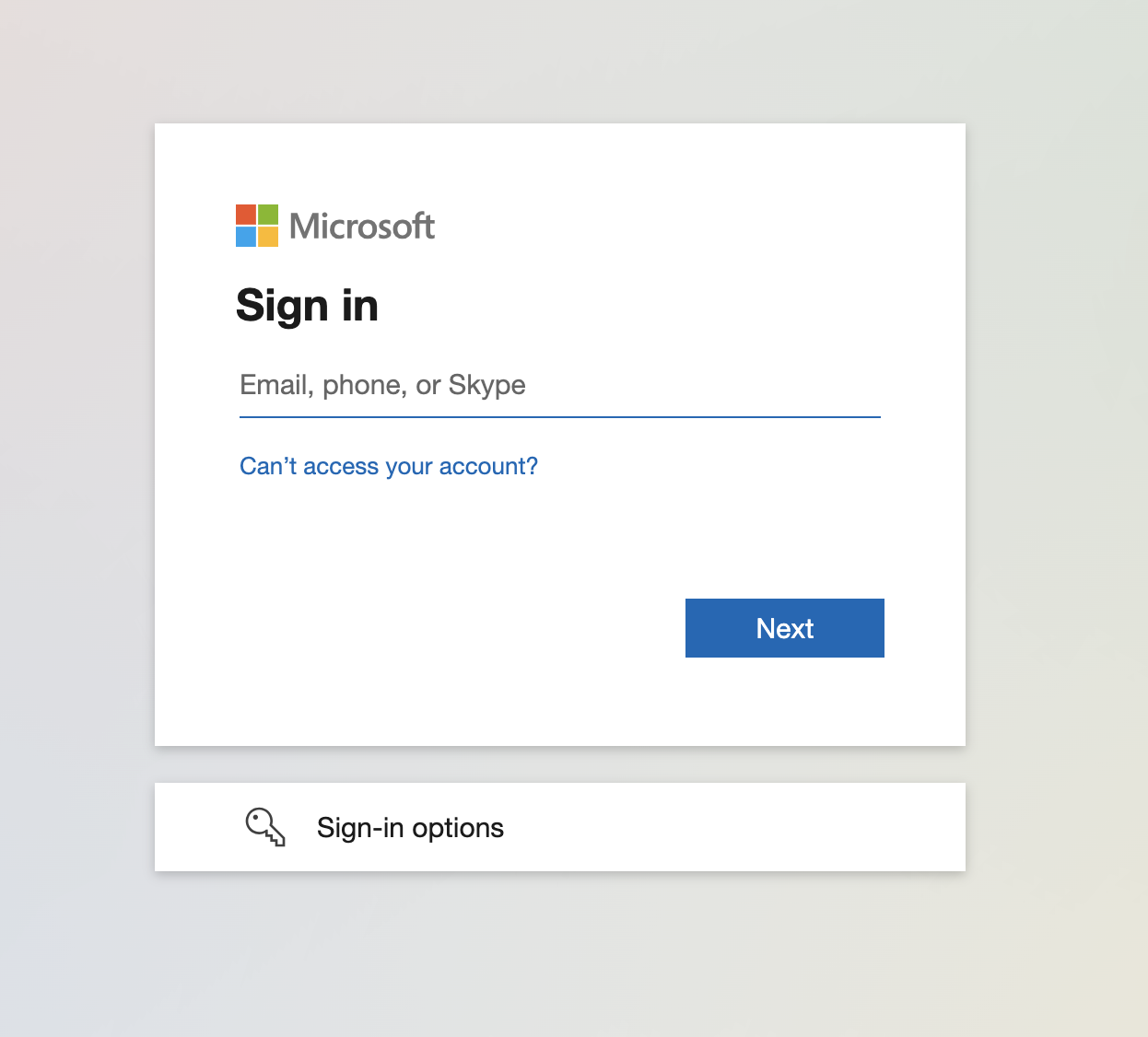
Figure: Microsoft login page Example output for authorized users: Gloo Mesh Gateway redirects you to the app URL, such as
52.xxx.xx.x/ip. In this example, the httpbin app returns the origin IP address,10.xx.xx.x.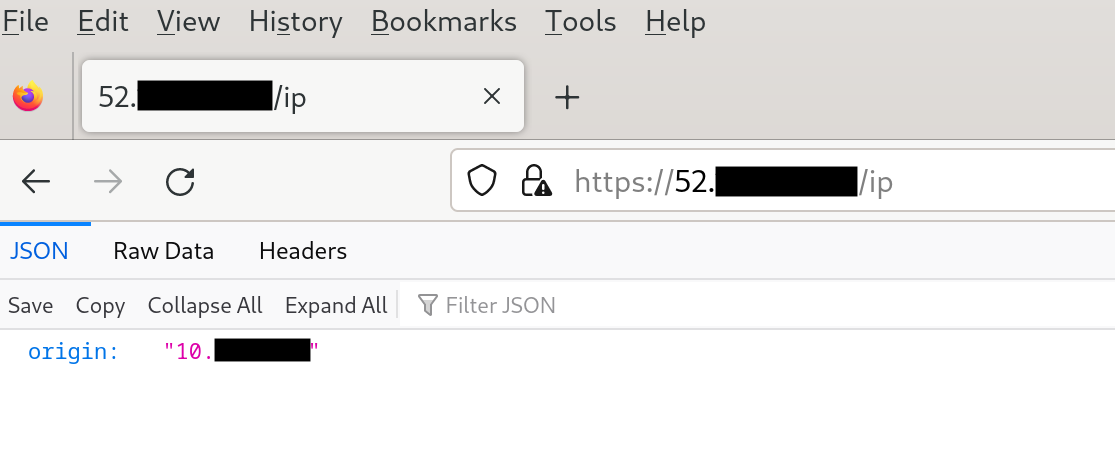
Figure: Example response of origin IP address Example output for unauthorized users: If you log in as a user that is not authorized to the group, you see a
Rejectedmessage similar to the following figure.
Figure: Example response of rejected unauthorized user
Cleanup
You can optionally remove the resources that you set up as part of this guide.
  kubectl delete Secret microsoft-extauth -n gloo-mesh
kubectl delete Secret microsoft-httpbin -n gloo-mesh
kubectl delete ExtAuthServer ext-auth-server -n httpbin
kubectl delete VirtualGateway httpbin-ingress -n httpbin
kubectl delete RouteTable httpbin-ingress -n httpbin
kubectl delete ConfigMap httpbin-rego -n httpbin
kubectl delete ExtAuthPolicy httpbin-test -n httpbin